Cron Job Not Running? Check These 8 Things First
crondebuggingops
Quick Summary — TL;DR
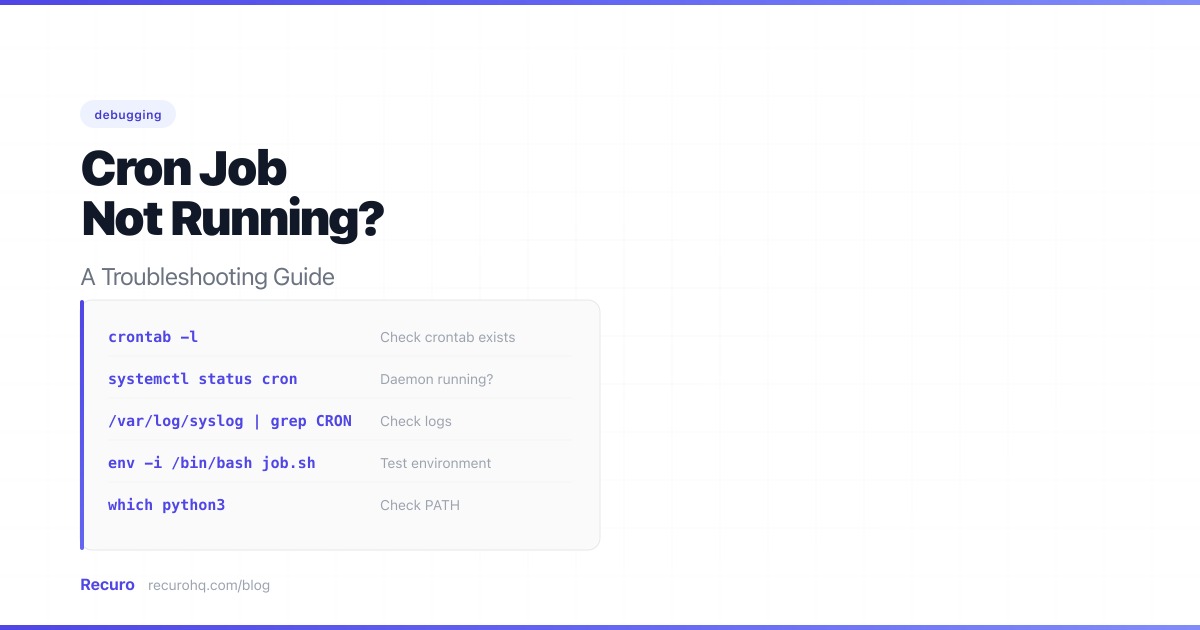
You wrote a script. It works perfectly when you run it by hand. You add it to cron, wait for the scheduled time, and nothing happens. No output, no error, no indication that anything went wrong. This is the most common cron complaint, and it almost always comes down to one of nine causes.
Before debugging your job, verify the scheduler itself is alive. The cron daemon is a system service that can be stopped by a reboot, a package update, or a misconfigured init system. For a full guide to managing crontab — editing, listing, and common pitfalls — start there if you’re new to the tooling.
On systemd-based systems (Ubuntu, Debian, CentOS 7+, RHEL):
systemctl status cron# or on CentOS/RHEL:systemctl status crondYou should see Active: active (running). If not:
sudo systemctl start cronsudo systemctl enable cronOn older init systems:
service cron status# If stopped:sudo service cron startOn macOS, the equivalent is launchd, but if you’re using crontab -e on macOS, the cron daemon is typically managed automatically. Verify with:
sudo launchctl list | grep cronIf the daemon isn’t running, none of your jobs will fire, no matter how correct the cron expression is.
A malformed expression silently does nothing. If you need a refresher on the five fields, operators, and special strings, see the cron syntax cheat sheet. Common mistakes:
0 9 * * * runs at 9:00 AM. 9 0 * * * runs at 12:09 AM. These look similar but fire 9 hours apart.0 9 * * MON works on some systems but not all. Use numeric values (0 9 * * 1) for portability.0 on most systems but 7 on others. Both usually work, but check your platform.crontab -e and is invisible when you review the file.Validate your expression before deploying. Paste it into the cron expression explainer to see the exact next run times, or build one from scratch with the cron expression generator. See 25 cron expression examples for tested, copy-paste schedules.
% characters in the commandThe % character has special meaning in crontab: it is interpreted as a newline. Everything after the first unescaped % is fed to the command as stdin, not passed as part of the command line. This breaks commands silently with no error in the cron log.
The most common victim is date formatting:
# Broken — cron sees "date +" and pipes "Y-" as stdin0 2 * * * /usr/bin/tar czf /backups/db-$(date +%Y-%m-%d).tar.gz /var/lib/mysql
# Fixed — escape every % with a backslash0 2 * * * /usr/bin/tar czf /backups/db-$(date +\%Y-\%m-\%d).tar.gz /var/lib/mysql
Any % in your cron command must be escaped as \%. This applies everywhere in the command string, not just in date — curl payloads, awk format strings, and anything else that contains a literal percent sign.
If your command has many % characters, put the logic in a shell script and call that from cron instead. Scripts referenced by cron are not subject to crontab’s % parsing:
# The script itself can use % freely — only the crontab line parses %0 2 * * * /home/app/scripts/backup.shThis issue does not appear when you test commands in an interactive shell, which makes it especially hard to catch. If your cron log shows the job ran but the output or files are wrong, check for unescaped % characters first.
This is the single most common reason a script works manually but fails in cron. When you open a terminal, your shell loads ~/.bashrc, ~/.bash_profile, or ~/.zshrc, which set up your PATH, language settings, and other environment variables. Cron does none of this. It runs with a minimal environment, typically just:
SHELL=/bin/shPATH=/usr/bin:/binHOME=/home/youruserIf your script calls python, node, php, or any command that lives outside /usr/bin:/bin, cron will not find it. The fix is to use absolute paths everywhere:
# Wrong — cron can't find python3* * * * * python3 /home/app/scripts/sync.py
# Right — absolute path to the interpreter* * * * * /usr/bin/python3 /home/app/scripts/sync.py
Find the absolute path of any command with which:
which python3which node# /usr/local/bin/nodeAlternatively, set PATH at the top of your crontab:
PATH=/usr/local/bin:/usr/bin:/bin
0 * * * * python3 /home/app/scripts/sync.py
If your script depends on other environment variables (API keys, database URLs), define them in the crontab or source them explicitly:
0 * * * * . /home/app/.env && /usr/bin/python3 /home/app/scripts/sync.pyCron runs jobs as the user who owns the crontab. If the script file is not executable or is owned by a different user, it will fail.
# Make the script executablechmod +x /home/app/scripts/sync.sh
# Verify ownershipls -la /home/app/scripts/sync.sh
Other permission issues to check:
www-data cannot write to /root/logs/.audit.log or dmesg for denial messages.crontab -u www-data -e to edit another user’s crontab.If you put your cron entry in /etc/cron.d/, the file format requires a username field between the schedule and the command:
# /etc/cron.d/myapp — note the username field0 * * * * www-data /usr/bin/php /var/www/app/artisan schedule:runFiles in /etc/cron.d/ must be owned by root and must not be group-writable or world-writable, or cron will refuse to load them.
If your script runs fine from an interactive terminal but fails silently in cron, the difference is almost always the environment. Beyond PATH (covered above), watch for:
cd into your project directory. Use absolute paths for all file references, or add an explicit cd at the start of the command:0 * * * * cd /var/www/app && /usr/bin/php artisan schedule:run/bin/sh by default, not bash. If your script uses bash-specific syntax (arrays, [[ ]] tests, process substitution), either set SHELL=/bin/bash in the crontab or add a shebang line:#!/bin/bash# Now bash-specific syntax worksMissing display server. Scripts that use GUI tools or need a DISPLAY variable will fail in cron. This includes anything that spawns a browser or uses graphical libraries.
Virtual environments. Python scripts that depend on a virtualenv need to activate it or use the virtualenv’s Python binary directly:
0 * * * * /home/app/venv/bin/python /home/app/scripts/sync.pyBy default, cron sends a job’s stdout and stderr to the local mail system via MAILTO. If no mail transfer agent is configured (common on modern servers), that output is silently discarded. Your job could be failing with a clear error message, but you never see it.
Redirect output to a log file:
0 * * * * /usr/bin/python3 /home/app/scripts/sync.py >> /var/log/myapp/sync.log 2>&1Breaking this down:
>> appends stdout to the log file2>&1 redirects stderr to the same destinationTo capture stdout and stderr separately:
0 * * * * /usr/bin/python3 /home/app/scripts/sync.py >> /var/log/myapp/sync.log 2>> /var/log/myapp/sync-error.logIf you want email notifications, set MAILTO at the top of the crontab and make sure a mail transfer agent (like postfix or msmtp) is installed:
0 * * * * /usr/bin/python3 /home/app/scripts/sync.pyTo suppress output for a job you know is noisy but working:
0 * * * * /usr/bin/python3 /home/app/scripts/sync.py > /dev/null 2>&1Be careful with that last one. Sending output to /dev/null is the reason most cron debugging is hard in the first place. Use it sparingly.
Cron evaluates expressions against the system clock. If your server is set to UTC but you expected the job to run at 9 AM in your local timezone, it will fire at the wrong time.
Check the system timezone:
timedatectl# orcat /etc/timezone# ordate +%ZIf the server is in UTC and you need a job to run at 9 AM US Eastern (UTC-5 / UTC-4 during DST):
# UTC equivalent of 9 AM ET (standard time)0 14 * * * /usr/bin/python3 /home/app/scripts/report.pyThe problem with this approach is daylight saving time. The UTC offset changes twice a year, so your “9 AM” job drifts by an hour.
Better approaches:
CRON_TZ=America/New_York0 9 * * * /usr/bin/python3 /home/app/scripts/report.pyIf a job takes longer than the interval between runs, you get concurrent executions. A backup script that takes 90 minutes, scheduled every hour, will have two instances running simultaneously by the second hour. This can cause data corruption, duplicate processing, or resource exhaustion.
Use flock to enforce mutual exclusion:
# Only one instance runs at a time — subsequent attempts are skipped0 * * * * /usr/bin/flock -n /tmp/sync.lock /usr/bin/python3 /home/app/scripts/sync.pyThe -n flag makes flock exit immediately (non-blocking) if the lock is already held. Without -n, it waits — which is rarely what you want for cron jobs.
For more complex concurrency control, use a timeout:
# Wait up to 60 seconds for the lock, then give up0 * * * * /usr/bin/flock -w 60 /tmp/sync.lock /usr/bin/python3 /home/app/scripts/sync.pyIf your jobs are regularly overlapping, the real fix is to either increase the interval or optimize the job’s execution time.
When none of the nine causes above explain the problem, check whether cron even attempted to run your command. Cron logs every attempt, and these logs are the fastest way to narrow down the issue.
Debian/Ubuntu:
grep CRON /var/log/syslogCentOS/RHEL:
cat /var/log/cronsystemd-based systems (any distro):
journalctl -u cron --since "1 hour ago"# or for crond:journalctl -u crond --since "1 hour ago"A normal cron log entry looks like:
Mar 19 09:00:01 server CRON[12345]: (www-data) CMD (/usr/bin/php /var/www/app/artisan schedule:run)If you see the entry, cron ran the command. The problem is in your script. If there is no entry at the expected time, the issue is with the cron expression, the daemon, or the crontab itself.
To verify your crontab is loaded correctly:
crontab -lIf the output is empty or missing your entry, the crontab was not saved properly. Re-edit with crontab -e.
Tired of debugging cron infrastructure? If you’re spending more time on PATH issues, silent failures, and log wrangling than on the actual jobs, a managed job scheduling service eliminates the entire category. Recuro runs your scheduled HTTP requests with built-in execution logs, automatic retries, configurable failure alerts, and a dashboard that shows every job’s status and history. You define the cron expression and the endpoint URL — everything else is handled.
If you’re already running cron jobs and want to add monitoring without migrating, see how to monitor cron jobs and get alerts.
The most common causes are: the cron daemon is stopped, the cron expression has a syntax error, PATH is not set correctly (cron uses a minimal environment), the script is not executable, or output is being discarded so you cannot see the error. Start by checking whether the daemon is running (systemctl status cron) and whether cron logged an attempt (grep CRON /var/log/syslog).
The difference is almost always the environment. Cron runs with a minimal PATH (/usr/bin:/bin), uses /bin/sh instead of bash, does not load your shell profile, and does not set a working directory. Use absolute paths for all commands and file references, set SHELL=/bin/bash if you need bash features, and redirect stderr to a log file (2>&1) so you can see the actual error message.
On Debian and Ubuntu, cron logs are in /var/log/syslog (filter with grep CRON /var/log/syslog). On CentOS and RHEL, they are in /var/log/cron. On any systemd-based system, use journalctl -u cron to view them. These logs show whether cron attempted to run your command, which helps you determine if the problem is the schedule or the script.
Cron does not load your shell profile, so commands like python3, node, or php may not be found. Either use absolute paths in your cron command (e.g., /usr/bin/python3 instead of python3), or set PATH at the top of your crontab file (e.g., PATH=/usr/local/bin:/usr/bin:/bin). Find the absolute path of any command by running 'which command-name' in your terminal.
Use flock to create a lock file that prevents concurrent executions. Add it before your command in the crontab: /usr/bin/flock -n /tmp/myjob.lock /path/to/script.sh. The -n flag makes flock exit immediately if another instance already holds the lock, so the second run is skipped instead of queued.
Cron evaluates expressions against the system clock. If your server timezone is UTC and you scheduled a job for '0 9 * * *', it runs at 9 AM UTC, not your local time. Check your system timezone with 'timedatectl' or 'date +%Z'. Either convert your desired time to UTC, or set CRON_TZ in your crontab if your system supports it.
By default, cron sends output to the local mail system, which is often not configured on modern servers. Redirect both stdout and stderr to a log file by appending '>> /var/log/myjob.log 2>&1' to your cron command. You can also set [email protected] at the top of the crontab, but this requires a working mail transfer agent on the server.
In crontab, the % character is interpreted as a newline. Everything after the first unescaped % is sent to the command as stdin instead of being part of the command line. This silently breaks commands like date +%Y-%m-%d. Escape every % as \% in your crontab entry, or move the command into a shell script where % is treated normally.
Recuro handles cron scheduling, retries, alerts, and execution logs — so you can focus on building your product.
No credit card required