Cron Jobs Explained in 5 Minutes (With Examples)
cronbeginner
Quick Summary — TL;DR
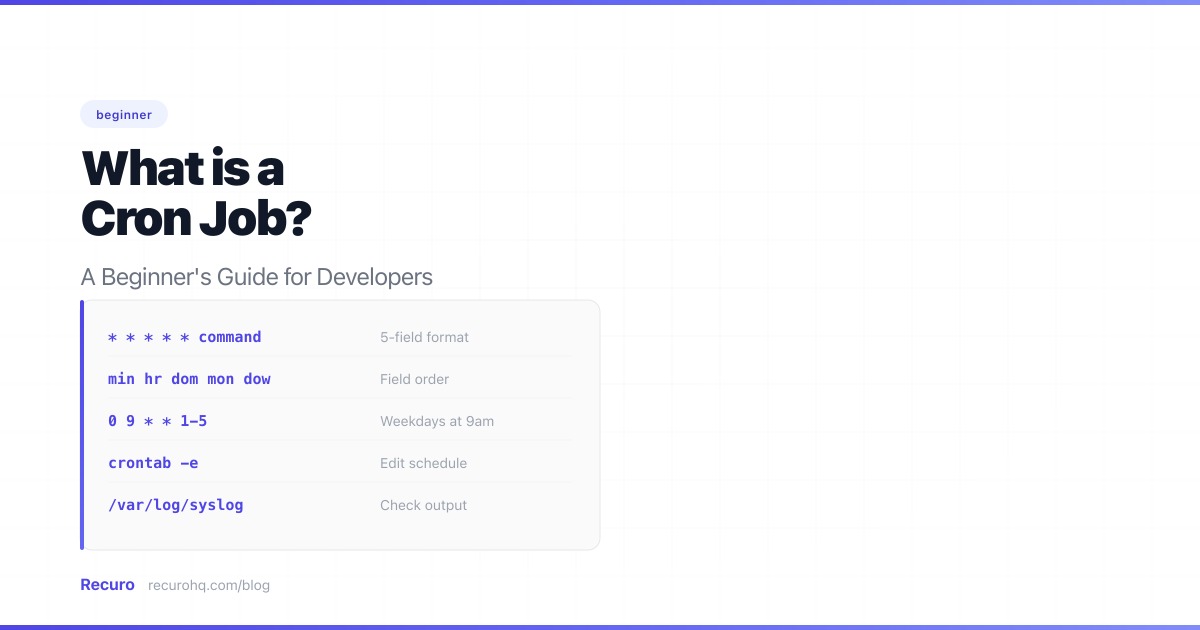
If you’ve ever needed to run a script every night, send a report every Monday, or clean up old records every hour — you need a cron job.
A cron job is a scheduled task that runs automatically at a specified time or interval. The name comes from the Unix cron daemon, a background process that’s been running scheduled commands on Linux and macOS servers since the 1970s.
In modern usage, “cron job” has become a generic term for any recurring scheduled task — whether it’s running on a traditional server, a cloud function, or a managed scheduling service.
Cron jobs handle any work that needs to happen on a regular schedule without someone manually triggering it:
The traditional cron system has three components:
A cron expression defines the schedule — when the job runs. It’s a five-field string that specifies the minute, hour, day of month, month, and day of week:
┌───────────── minute (0–59)│ ┌───────────── hour (0–23)│ │ ┌───────────── day of month (1–31)│ │ │ ┌───────────── month (1–12)│ │ │ │ ┌───────────── day of week (0–7, Sun = 0 or 7)│ │ │ │ │* * * * *For example:
0 9 * * 1 — every Monday at 9:00 AM*/15 * * * * — every 15 minutes0 0 1 * * — first day of every month at midnightSee 25 cron expressions with copy-paste examples, the cron syntax cheat sheet for a complete field reference, or use the cron expression generator to build one visually.
The actual work to be done. On a traditional server, this is a shell command:
# Hit an HTTP endpointcurl -sf https://api.example.com/cleanup
# Run a Python script/usr/bin/python3 /home/app/scripts/sync.pySomething needs to watch the clock and trigger the command at the right time. On Unix systems, this is the cron daemon — a background process that checks every minute whether any jobs are due to run.
Let’s create a cron job that runs every 5 minutes and writes the current date to a log file. This is a safe way to verify everything works before scheduling real work.
Step 1: Open your terminal and type:
crontab -eThis opens your personal crontab file in a text editor. If it’s your first time, it will be empty.
Step 2: Add this line at the bottom of the file:
*/5 * * * * echo "$(date): cron is running" >> /tmp/cron-test.logThis breaks down as:
*/5 * * * * — run every 5 minutesecho "$(date): cron is running" — the command to execute>> /tmp/cron-test.log — append the output to a log fileStep 3: Save and exit. You should see a message like crontab: installing new crontab.
Step 4: Verify your crontab was saved:
crontab -lYou should see the line you just added.
Step 5: Wait 5 minutes, then check the log:
cat /tmp/cron-test.logYou should see something like:
Sat Mar 14 10:05:00 UTC 2026: cron is runningSat Mar 14 10:10:00 UTC 2026: cron is runningThat’s it — you have a working cron job. To remove it later, run crontab -e and delete the line.
For a full walkthrough of crontab commands, user vs system crontabs, and common pitfalls, see Crontab Explained.
What about the limitations? The crontab approach is simple and built into every Unix system, but it has no retries, no execution logs, and no failure alerts. If the server reboots and nobody checks, the jobs just stop. See how to monitor cron jobs for why this matters.
The crontab is the most direct way to run cron jobs, but there are two other common approaches worth knowing about:
Framework schedulers — Most web frameworks (Laravel, Django/Celery Beat, Rails) include a scheduling layer that lets you define jobs in your application code. These still need a cron entry or persistent process to trigger them, but the schedule lives in your codebase instead of a server config file.
External HTTP schedulers — Services like Recuro let you point a managed scheduler at an HTTP endpoint and define the schedule. The service calls your URL on schedule, logs every execution, retries failures with exponential backoff, and alerts you when things go wrong. This is useful when you want monitoring and retries without building that infrastructure yourself. See webhook scheduling for more on this approach.
Here’s a cheat sheet you can bookmark:
| Symbol | Meaning | Example |
|---|---|---|
* | Every value | * * * * * = every minute |
, | List of values | 1,15 * * * * = minute 1 and 15 |
- | Range | 0 9-17 * * * = hours 9 through 17 |
/ | Step / interval | */10 * * * * = every 10 minutes |
Common shortcuts:
| Schedule | Expression |
|---|---|
| Every minute | * * * * * |
| Every hour | 0 * * * * |
| Every day at midnight | 0 0 * * * |
| Every Monday at 9 AM | 0 9 * * 1 |
| Every 1st of the month | 0 0 1 * * |
Need something more complex? Use the cron expression generator to build it visually, or check the cron expression explainer to decode an existing expression.
If a job runs twice (due to a retry or overlapping execution), it shouldn’t produce duplicate results. Sending two welcome emails or charging a customer twice is a bug. Design your jobs to be idempotent — running them twice should have the same effect as running them once.
Traditional cron gives you zero visibility into whether your jobs actually succeeded. No logs, no alerts. A job can fail silently for weeks. You find out when a customer asks why their invoice was never sent, or when someone notices the database cleanup stopped running and storage costs are climbing. The job shows as “scheduled” — because it is. It just hasn’t succeeded.
Always pair your cron jobs with monitoring and alerting.
Cron expressions don’t carry timezone information. If your server is in UTC but you schedule a job for “9 AM,” that’s 9 AM UTC — not your local time. Always confirm what timezone your scheduler uses, and prefer UTC to avoid daylight saving surprises.
Everyone’s cron jobs run at midnight (0 0 * * *). If you’re on shared infrastructure — managed databases, cloud functions, hosting platforms — your backup or cleanup job is competing with everyone else’s.
Stagger your jobs: run at 0:15, 0:30, or 1:00. For expensive queries, run at 3 AM or 4 AM when the shared infrastructure is actually quiet.
Recuro handles cron scheduling, retries, alerts, and execution logs — so you can focus on building your product.
No credit card required