Sub-Minute Scheduling: 5 Ways to Beat Cron's 1-Minute Limit
cronschedulinglinux
Quick Summary — TL;DR
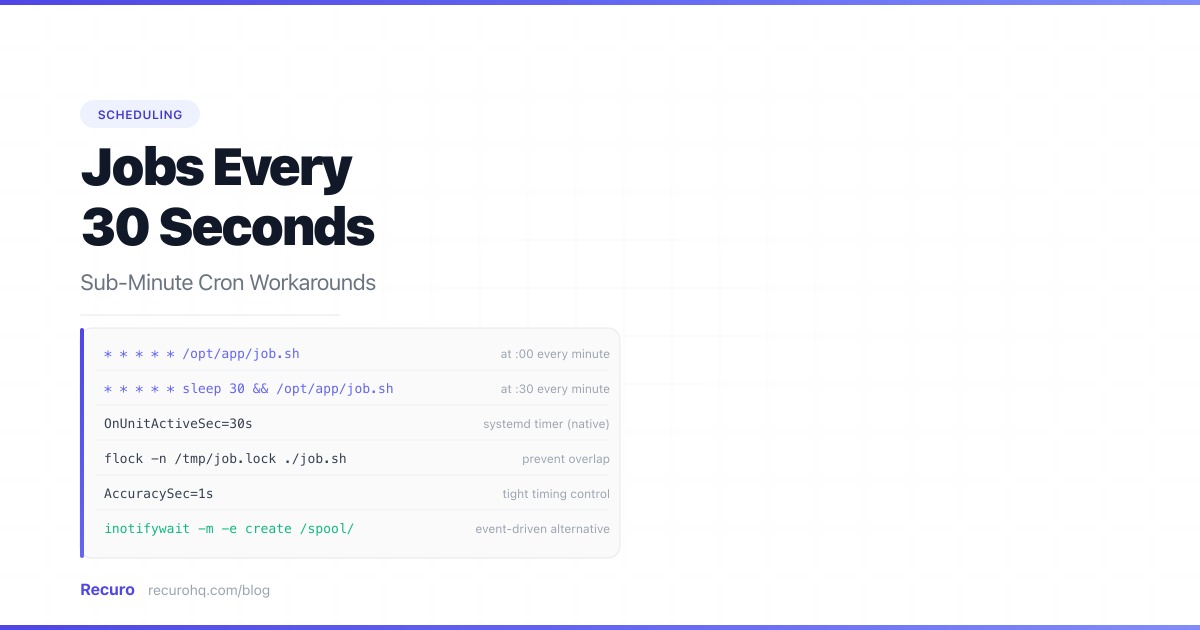
Cron does not support sub-minute scheduling. The smallest unit in a cron expression is one minute — * * * * * runs every 60 seconds, and there is no syntax for anything faster. If you need to run a job every 30 seconds, every 15 seconds, or every 5 seconds, you need a workaround.
This guide covers five approaches, from quick hacks to production-grade solutions, with the tradeoffs of each.
The cron daemon reads its schedule table once per minute. Each entry’s five fields — minute, hour, day-of-month, month, day-of-week — define which minutes the job runs on. There is no seconds field in standard POSIX cron. See the cron syntax cheat sheet for the full field reference.
Some non-standard cron implementations (Quartz, Spring’s @Scheduled, AWS EventBridge) do support a sixth field for seconds. But the system crontab on Linux, macOS, and BSD does not. If you are using the operating system’s cron daemon, one minute is the floor.
The most common hack: schedule the job twice, with the second entry delayed by 30 seconds.
# Run every minute at :00* * * * * /opt/app/check-queue.sh
# Run every minute at :30* * * * * sleep 30 && /opt/app/check-queue.sh
The first entry fires at the top of each minute. The second entry also fires at the top of each minute, but sleeps for 30 seconds before running the actual command. The result: your script executes every 30 seconds.
The same pattern scales down:
* * * * * /opt/app/check-queue.sh* * * * * sleep 15 && /opt/app/check-queue.sh* * * * * sleep 30 && /opt/app/check-queue.sh* * * * * sleep 45 && /opt/app/check-queue.shEach sleep command occupies a process for the duration of the delay, but it consumes essentially zero CPU. The && ensures the job only runs if the sleep completes successfully.
Overlap risk. If check-queue.sh takes more than 30 seconds, the next invocation starts before the previous one finishes. With four entries for 15-second intervals, a job that takes 20 seconds will always overlap. Use flock to prevent this:
* * * * * /usr/bin/flock -n /tmp/check-queue.lock /opt/app/check-queue.sh* * * * * sleep 30 && /usr/bin/flock -n /tmp/check-queue.lock /opt/app/check-queue.shDrift. The sleep duration is approximate. System load, process scheduling, and the time cron takes to spawn the shell all add milliseconds. Over hours, the intervals drift slightly. For most workloads, this drift is irrelevant. For timing-sensitive applications (market data, real-time metrics), it is not.
Crontab clutter. Running every 10 seconds means six lines in the crontab for a single logical job. Multiply by several jobs and the crontab becomes unmanageable.
No visibility. Cron does not know these entries are related. There is no unified log, no combined failure tracking, and no way to pause all six entries atomically.
Instead of multiple crontab entries, run a single persistent script that loops internally.
#!/bin/bashwhile true; do /opt/app/check-queue.sh & sleep 30doneStart this with a single crontab entry that ensures it is always running:
* * * * * /usr/bin/flock -n /tmp/run-every-30s.lock /opt/app/run-every-30s.shThe flock ensures only one instance of the loop runs. The & backgrounds each invocation so the loop does not block if the job takes longer than 30 seconds.
This is simpler to manage than four crontab entries. But the script must handle its own lifecycle: if it crashes, cron restarts it within one minute (the next tick). During that gap, no executions happen. For tighter guarantees, use systemd or a process supervisor instead of cron as the launcher.
On any Linux system running systemd (Ubuntu 16.04+, Debian 8+, RHEL 7+, Fedora 15+), systemd timers natively support sub-second scheduling. This is the production-grade solution.
[Unit]Description=Check queue for pending items
[Service]Type=oneshotExecStart=/opt/app/check-queue.shUser=www-data[Unit]Description=Run check-queue every 30 seconds
[Timer]OnBootSec=30sOnUnitActiveSec=30sAccuracySec=1s
[Install]WantedBy=timers.targetsudo systemctl daemon-reloadsudo systemctl enable check-queue.timersudo systemctl start check-queue.timer# See all active timers with their next fire timesystemctl list-timers --all
# Check execution logsjournalctl -u check-queue.service --since "5 minutes ago"| Feature | Cron + sleep | Systemd timer |
|---|---|---|
| Sub-minute intervals | Workaround (multiple entries) | Native (OnUnitActiveSec=30s) |
| Overlap prevention | Requires flock | Built-in (oneshot waits for completion) |
| Logging | Manual (redirect to file) | Built-in (journalctl) |
| Failure tracking | Manual | systemctl status shows last result |
| Start/stop/pause | Edit crontab, kill processes | systemctl stop check-queue.timer |
| Survives reboot | Depends on crontab config | systemctl enable handles it |
| Accuracy | Drifts with system load | AccuracySec=1s for tight control |
OnUnitActiveSec=30s means “30 seconds after the last invocation completed.” This is inherently overlap-safe: if the job takes 45 seconds, the next run starts 30 seconds after the 45-second run finishes, not 30 seconds after it started. Cron does not have this guarantee.
AccuracySec=1s tells systemd to fire the timer within 1 second of the target time. The default is 1 minute (for power efficiency), which defeats the purpose of sub-minute scheduling.
Use cron for jobs that run at minute-level intervals or above, where the cron expression syntax is convenient and the job does not need tight timing. Use systemd timers for anything sub-minute, anything that needs overlap prevention without flock, or anything that benefits from systemd’s logging and lifecycle management. For a full comparison, see cron vs systemd timers (coming soon).
If your “every 30 seconds” job is really “process new files as they arrive,” you do not need a timer at all. Use inotifywait to react to filesystem events:
#!/bin/bash# Watch a directory and process new files immediatelyinotifywait -m -e create -e moved_to /var/spool/incoming/ |while read -r directory event filename; do /opt/app/process-file.sh "/var/spool/incoming/$filename"doneThis fires within milliseconds of a new file appearing — far faster than any polling interval. It uses zero CPU between events.
This only applies when the trigger is a filesystem event. For HTTP endpoints, API checks, or database queries, inotifywait is not relevant.
If your sub-minute job is an HTTP request — hitting an endpoint to trigger processing, check a queue, or sync data — the simplest solution is an external scheduler that supports sub-minute intervals natively.
This eliminates the workaround entirely. No sleep hacks, no systemd timer files, no bash loops. You define the interval, point it at a URL, and the scheduler handles execution, retries, and failure tracking.
Recuro supports cron expressions down to one-minute intervals with automatic retry on failure and alert thresholds. For HTTP-based jobs that currently use the sleep workaround, moving to an external scheduler removes the operational overhead and gives you execution logs, response time tracking, and failure alerts that cron does not provide.
| Situation | Best method |
|---|---|
| Quick local hack, non-critical job | Sleep workaround |
| Linux server, production workload | Systemd timer |
| React to filesystem changes | inotifywait |
| HTTP endpoint that needs sub-minute calls | External scheduler |
| macOS or BSD (no systemd) | Sleep workaround or launchd |
| Container or serverless | External scheduler (no persistent daemon) |
For most production Linux workloads, systemd timers are the answer. They are built into the operating system, handle overlap, logging, and lifecycle natively, and do not require workarounds.
For HTTP-based jobs — especially in containerized or serverless environments where you do not have a persistent daemon — an external scheduler is the cleanest solution.
The sleep workaround is fine for development, testing, or non-critical background jobs where a missed execution is not a problem. Just add flock to prevent overlap.
Forgetting flock with the sleep workaround. Two crontab entries for the same job with a 30-second sleep will overlap if the job takes more than 30 seconds. Always use flock or equivalent locking.
Using AccuracySec=1min (the default) with systemd timers. Systemd batches timer wakeups for power efficiency. The default accuracy of 1 minute means your “every 30 seconds” timer might fire anywhere from 30 to 90 seconds apart. Set AccuracySec=1s explicitly.
Running a persistent bash loop without a supervisor. A while true; do ... sleep 30; done loop works until it crashes, gets OOM-killed, or the server reboots. Use cron with flock, systemd, or a process supervisor (supervisord, pm2) to restart it automatically.
Using sub-minute polling when the actual need is event-driven. If you are polling a database or API every 30 seconds to check for new records, consider whether a webhook, database trigger, or message queue would be more efficient. Polling every 30 seconds costs 2,880 invocations per day — most of which return nothing new. See webhooks vs polling.
No. Standard POSIX cron's smallest granularity is one minute. There is no cron expression for sub-minute intervals. The workaround is to schedule two crontab entries for the same job, with the second entry prefixed by 'sleep 30 &&' to delay it by 30 seconds. For production workloads on Linux, systemd timers natively support sub-second intervals and are the recommended alternative.
There is no cron expression for every 30 seconds. The five fields in a cron expression (minute, hour, day-of-month, month, day-of-week) do not include a seconds field. The expression '*/30 * * * *' means every 30 minutes, not every 30 seconds. Some non-standard implementations like Quartz and Spring support a sixth seconds field, where '*/30 * * * * *' would mean every 30 seconds — but standard system cron does not.
It works but has limitations. The sleep duration is approximate and drifts slightly with system load. If the job takes longer than the sleep interval, executions overlap unless you use flock for locking. There is no unified logging or failure tracking across the multiple crontab entries. For non-critical jobs, it is fine. For production workloads where timing and reliability matter, use systemd timers or an external scheduler.
Systemd timers are superior for sub-minute scheduling. They natively support intervals down to sub-second precision (OnUnitActiveSec=30s), prevent overlap automatically when using Type=oneshot, integrate with journalctl for logging, and provide start/stop/pause controls via systemctl. The tradeoff: timer units require two files (a .service and a .timer) instead of a single crontab line, and the syntax is less familiar to developers who know cron expressions.
With the cron sleep workaround, use flock: '/usr/bin/flock -n /tmp/job.lock /path/to/script.sh'. The -n flag makes flock exit immediately if another instance holds the lock. With systemd timers, use Type=oneshot in the service unit — systemd will not start the next invocation until the current one completes. With a bash loop, background the job with '&' so the loop continues regardless of job duration, but add your own locking to prevent concurrent processing.
If you are polling every 30 seconds to check for new data, consider whether the data source supports webhooks, database triggers, or message queues. Event-driven approaches fire immediately when new data arrives (zero latency), use zero resources between events, and scale better under load. Polling every 30 seconds costs 2,880 invocations per day, and most will return empty results. Use sub-minute polling only when the data source has no push mechanism or when you need to aggregate state snapshots at regular intervals.
Recuro handles cron scheduling, retries, alerts, and execution logs — so you can focus on building your product.
No credit card required