Quick Summary — TL;DR
- Cron is simpler, more portable, and works on virtually every Unix-like system out of the box.
- Systemd timers give you dependency ordering, journald logging, resource controls, and calendar-based scheduling.
- For one-liner tasks on a traditional server, cron is faster to set up and easier to reason about.
- For services with dependencies, boot-relative triggers, or complex resource constraints, systemd timers are the better fit.
- In ephemeral or containerized environments, neither works well — managed schedulers are the practical choice.
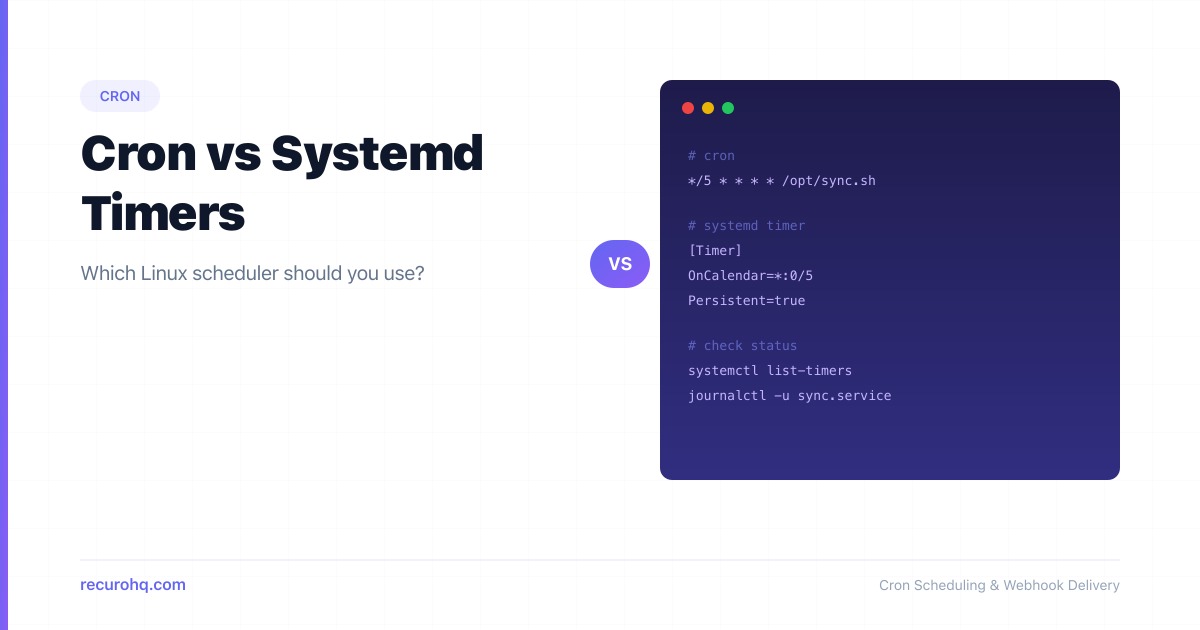
Both cron and systemd timers schedule recurring tasks on Linux. They solve the same core problem — run this thing at this time — but they differ in architecture, logging, dependency handling, and how much infrastructure they assume. Picking the right one depends on what you are scheduling and where it runs.
This guide compares both side by side with real configuration examples, a migration walkthrough, and guidance on when each tool is the better choice.
What is cron?
The cron daemon is the original Unix task scheduler. It reads schedule definitions from crontab files and executes commands at the specified times. The syntax is five fields — minute, hour, day of month, month, day of week — followed by a command.
# Run a backup script every day at 3:30 AM30 3 * * * /opt/scripts/backup.sh >> /var/log/backup.log 2>&1Cron has been around since the 1970s. It is installed by default on nearly every Linux distribution, macOS, and most BSDs. If you need a deeper walkthrough of crontab editing and management, see Crontab Explained: How to Edit, List, and Manage Cron Jobs. For the five-field syntax itself, the Cron Syntax Cheat Sheet covers every field and special string.
What are systemd timers?
Systemd timers are the scheduling mechanism built into systemd, the init system used by most modern Linux distributions (Debian, Ubuntu, Fedora, RHEL, Arch, and others). A timer consists of two unit files: a .timer file that defines the schedule and a .service file that defines what to run.
The timer unit activates its corresponding service unit on schedule. Because it builds on systemd’s existing infrastructure, it inherits dependency management, resource controls (CPU, memory, IO limits), sandboxing, and structured logging via journald.
Here is a minimal timer that runs a backup script daily at 3:30 AM:
/etc/systemd/system/backup.timer
[Unit]Description=Daily backup timer
[Timer]OnCalendar=*-*-* 03:30:00Persistent=true
[Install]WantedBy=timers.target
/etc/systemd/system/backup.service
[Unit]Description=Run backup script
[Service]Type=oneshotExecStart=/opt/scripts/backup.sh
The Persistent=true directive tells systemd to run the job immediately if a scheduled execution was missed (for example, the machine was off at 3:30 AM). This is something cron cannot do natively.
Side-by-side comparison
| Feature | Cron | Systemd Timers |
|---|---|---|
| Syntax | Five-field expression (30 3 * * *) | Calendar expressions (OnCalendar=*-*-* 03:30:00) |
| Config location | Single crontab line | Two unit files (.timer + .service) |
| Logging | None by default; must redirect manually | Automatic via journald (journalctl -u name) |
| Dependencies | None; jobs are independent | Full systemd dependency graph (After=, Requires=) |
| Missed runs | Lost silently | Persistent=true catches up on boot |
| Sub-minute scheduling | Not supported natively | OnUnitActiveSec= supports seconds-level intervals |
| Resource limits | None | CPUQuota=, MemoryMax=, IOWeight=, etc. |
| Portability | All Unix-like systems | Linux with systemd only |
| Monitoring | Requires external tooling | systemctl list-timers, exit status tracked |
| Randomized delay | Not supported | RandomizedDelaySec= for jitter |
| Setup effort | One line | Two files + enable/start commands |
When cron wins
Cron is the better choice when simplicity and portability matter more than advanced features.
One-liner tasks. Adding a single line to a crontab is faster than creating two unit files, reloading the daemon, and enabling the timer. For a log rotation script or a quick database dump, cron gets the job done with minimal ceremony.
Cross-platform needs. If your scheduled tasks need to run on macOS, FreeBSD, or older Linux distributions without systemd, cron is your only option. The five-field syntax is universal.
Team familiarity. Most developers and sysadmins already know cron syntax. There is no learning curve, no new abstraction to explain. The cron expression generator makes it even faster to get the schedule right.
Fewer moving parts. Cron has one daemon and one config format. There is less surface area for misconfiguration. When you are debugging a failed job, there are fewer layers to inspect.
When systemd timers win
Systemd timers are the stronger choice when you need more control over how and when jobs execute.
Dependency ordering. If your backup job must wait for a database service to be fully up, After=postgresql.service and Requires=postgresql.service express that directly. Cron has no concept of service dependencies — you would need sleep hacks or polling loops.
Structured logging. Every timer execution is automatically logged to journald. You can query logs with journalctl -u backup.service --since today without any manual redirect setup. Compare this with cron, where forgetting 2>&1 means errors vanish silently. See Cron Job Best Practices for the logging workarounds cron requires.
Missed execution recovery. With Persistent=true, a timer that was due while the system was powered off will fire on next boot. Cron simply skips missed executions with no record that anything was missed.
Resource controls. Systemd lets you cap CPU, memory, and IO per service unit. A runaway cron job can consume an entire server. A systemd service with MemoryMax=512M and CPUQuota=50% cannot.
Boot-relative and monotonic scheduling. OnBootSec=5min runs a job five minutes after boot. OnUnitActiveSec=30s runs it every 30 seconds after the last activation. Cron cannot express either of these, and sub-minute scheduling in cron requires workarounds.
Randomized delay. RandomizedDelaySec=5min adds jitter to prevent thundering-herd problems when many machines share the same schedule. With cron, you would need to bake randomization into the script itself.
Code examples: the same task both ways
Suppose you need to sync files to a remote server every 6 hours.
Cron version
# Edit crontabcrontab -e
# Add this line0 */6 * * * /usr/bin/rsync -az /data/ remote:/backup/data/ >> /var/log/sync.log 2>&1
One line. Logging is manual. No dependency handling. No resource limits.
Systemd timer version
/etc/systemd/system/data-sync.service
[Unit]Description=Sync data to remote backupAfter=network-online.targetWants=network-online.target
[Service]Type=oneshotExecStart=/usr/bin/rsync -az /data/ remote:/backup/data/MemoryMax=256MStandardOutput=journalStandardError=journal
/etc/systemd/system/data-sync.timer
[Unit]Description=Run data sync every 6 hours
[Timer]OnCalendar=0/6:00:00Persistent=trueRandomizedDelaySec=300
[Install]WantedBy=timers.target# Enable and start the timersudo systemctl daemon-reloadsudo systemctl enable --now data-sync.timer
# Check scheduled timerssystemctl list-timers data-sync.timerMore configuration, but you get network dependency ordering, automatic journald logging, memory limits, missed-run recovery, and jitter out of the box.
Migration guide: crontab entry to systemd timer
Converting an existing cron job is straightforward. Here is a step-by-step process.
Step 1: Identify the cron entry.
# Original crontab line15 2 * * 1 /opt/scripts/weekly-report.sh >> /var/log/report.log 2>&1This runs at 2:15 AM every Monday.
Step 2: Create the service unit.
sudo cat > /etc/systemd/system/weekly-report.service << 'EOF'[Unit]Description=Generate weekly report
[Service]Type=oneshotExecStart=/opt/scripts/weekly-report.shEOF
Step 3: Create the timer unit.
The cron expression 15 2 * * 1 translates to the systemd calendar expression Mon *-*-* 02:15:00.
sudo cat > /etc/systemd/system/weekly-report.timer << 'EOF'[Unit]Description=Weekly report timer
[Timer]OnCalendar=Mon *-*-* 02:15:00Persistent=true
[Install]WantedBy=timers.targetEOF
Step 4: Enable the timer and remove the cron entry.
sudo systemctl daemon-reloadsudo systemctl enable --now weekly-report.timer
# Verify it is scheduledsystemctl list-timers weekly-report.timer
# Remove from crontabcrontab -e  # delete the line
Step 5: Verify logging.
# After the next execution, check logsjournalctl -u weekly-report.service --since todayThe key syntax mapping for calendar expressions:
| Cron field | Systemd equivalent |
|---|---|
0 * * * * (hourly) | OnCalendar=hourly |
0 0 * * * (daily at midnight) | OnCalendar=daily |
0 0 * * 0 (weekly, Sunday) | OnCalendar=weekly or Sun *-*-* 00:00:00 |
0 0 1 * * (monthly) | OnCalendar=monthly |
*/5 * * * * (every 5 min) | OnCalendar=*:0/5:00 |
Use systemd-analyze calendar "Mon *-*-* 02:15:00" to validate expressions before deploying.
What about cloud environments?
Neither cron nor systemd timers work well in ephemeral or containerized environments. Containers are often stateless and short-lived. Orchestrators like Kubernetes scale pods up and down. Auto-scaling groups terminate instances without warning.
In these contexts, the scheduler cannot live on the machine that runs the task. Cron requires a persistent host. Systemd timers require a persistent host with systemd as PID 1, which most containers do not run.
Cloud-native alternatives include Kubernetes CronJobs for container orchestration, cloud-provider schedulers like AWS EventBridge or GCP Cloud Scheduler, and managed HTTP scheduling services that trigger your endpoints externally. The right choice depends on your infrastructure, but the common thread is the same: the scheduler needs to be decoupled from the execution environment.
For more on reliability regardless of which scheduler you use, see How to Monitor Cron Jobs and Set Up Alerts.
Frequently asked questions
Can I use both cron and systemd timers on the same system?
Yes. They are independent systems and do not conflict. Many servers use cron for simple tasks and systemd timers for services that need dependency management or resource limits. Just avoid scheduling the same job in both places.
Do systemd timers support cron syntax?
No. Systemd uses its own calendar expression format (e.g., Mon *-*-* 02:15:00). The format is more readable than cron's five-field syntax but different enough that you cannot paste cron expressions directly. Use systemd-analyze calendar to validate expressions.
How do I list all active systemd timers?
Run systemctl list-timers --all to see every timer, its next and last trigger time, and the associated service unit. For cron, use crontab -l to list the current user's jobs or check /etc/crontab and /etc/cron.d/ for system-wide entries.
Can systemd timers run jobs more frequently than once per minute?
Yes. Using OnUnitActiveSec= or OnBootSec= with values like 30s or 10s, you can trigger jobs at sub-minute intervals. Cron's minimum granularity is one minute and requires workarounds for anything more frequent.
Is cron being deprecated in favor of systemd timers?
No. Cron is still actively maintained and included in every major Linux distribution. Some systemd-based distributions have stopped installing cron by default (like Fedora), but it remains available as a package. For most use cases, it is a matter of preference rather than deprecation.
Which is easier to back up and version control?
Systemd timer unit files are regular files in /etc/systemd/system/, making them straightforward to track in version control or manage with configuration tools like Ansible. Crontab entries can be exported with crontab -l, but per-user crontabs stored in /var/spool/cron/ are less convenient to manage as code.