Quick Summary — TL;DR
- crontab -e edits your cron schedule, crontab -l lists it, crontab -r deletes it. Use crontab -u username to manage another user's crontab.
- Each line in a crontab has five time fields (minute, hour, day-of-month, month, day-of-week) followed by the command to run.
- User crontabs live in /var/spool/cron/ and are managed with the crontab command. System crontabs live in /etc/crontab and /etc/cron.d/ and include a username field.
- Most crontab failures are caused by missing newlines at the end of the file, PATH differences, or the wrong EDITOR variable — all fixable in under a minute.
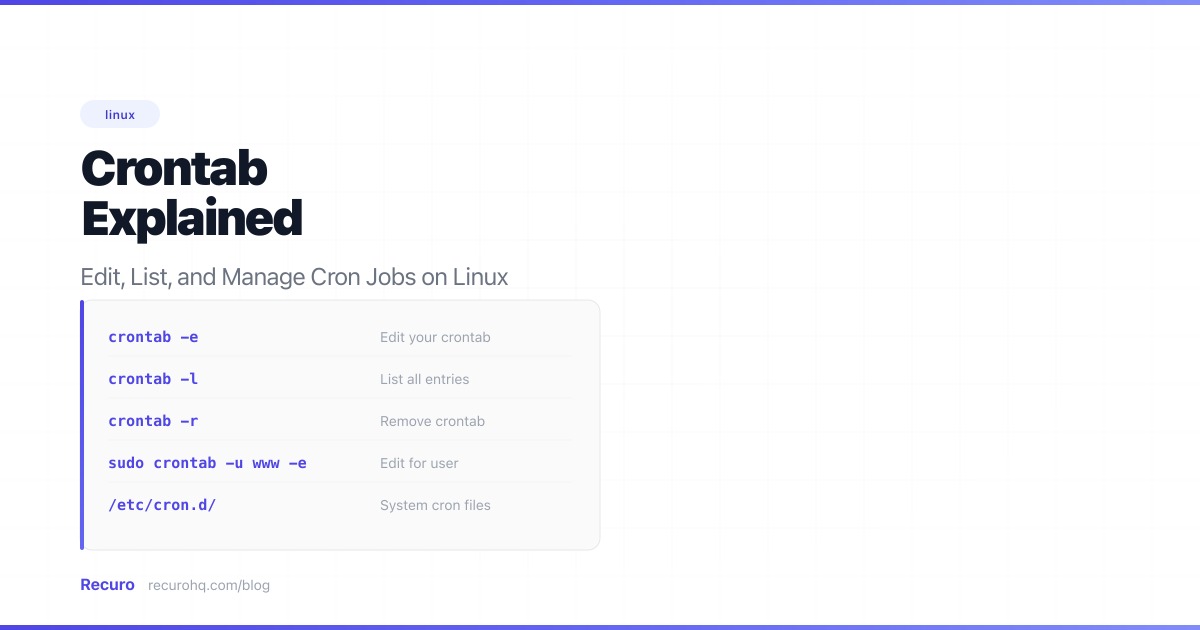
The crontab command is how you interact with the cron daemon on Linux and macOS. It is the interface for creating, viewing, and deleting scheduled tasks. Every time you hear someone say “I set up a cron job,” they used crontab (or they edited a system crontab file directly, which we will also cover).
This guide covers the crontab command itself — the flags, the file format, the system-level alternatives, and the mistakes that cause jobs to silently fail.
What crontab actually is
Crontab stands for “cron table.” It is a per-user file that contains a list of commands and the schedules on which to run them. The cron daemon reads these files and executes each command at the specified time.
There are two distinct things called “crontab”:
- The command (
crontab) — the CLI tool you use to install, view, and remove cron table files. - The file — the actual table of schedules and commands that the cron daemon reads.
When you run crontab -e, the command opens the file in a text editor. When you save and exit, the command installs the updated file for the cron daemon to pick up. You never edit the underlying file directly — the crontab command handles installation and validation.
The three commands you need
crontab -e — edit your crontab
Opens your user crontab in the default editor. If no crontab exists yet, it creates an empty one.
crontab -eThis opens whatever editor is set in $VISUAL or $EDITOR, falling back to vi if neither is set. If you hate vi and want nano:
EDITOR=nano crontab -eOr set it permanently in your shell profile:
echo 'export EDITOR=nano' >> ~/.bashrcsource ~/.bashrcWhen you save and exit, cron validates the file and installs it. If you introduced a syntax error, most cron implementations will warn you and ask if you want to re-edit. Some older implementations silently accept the broken file — another reason to always run crontab -l after editing.
crontab -l — list your crontab
Prints your current crontab to stdout. Use it to verify what is actually scheduled:
crontab -lIf you see no crontab for username, you have no scheduled jobs. This is also useful for backing up your crontab before making changes:
crontab -l > ~/crontab-backup-$(date +%Y%m%d).txtcrontab -r — remove your crontab
Deletes your entire crontab. Every job, gone, no confirmation prompt:
crontab -rThis is permanent and immediate. There is no undo. On many keyboards, r is right next to e — one mistyped key and your entire schedule is deleted. Some systems support crontab -ri for an interactive confirmation prompt, but not all. If your system does not, consider aliasing it:
alias crontab='crontab -i'This adds a confirmation prompt to crontab -r while leaving other flags unaffected.
The five-field syntax
Every line in a crontab follows the standard five-field cron syntax — see the cheat sheet for the full reference. The format is minute hour day-of-month month day-of-week command.
Each field accepts:
- A specific value:
5means “at the 5th unit” - A wildcard:
*means “every” - A range:
1-5means “1 through 5” - A list:
1,3,5means “1, 3, and 5” - A step:
*/10means “every 10th unit”
See 25 cron expression examples for schedules you can copy directly. Use the cron expression generator to build expressions visually, or the cron expression explainer to decode an existing one.
Some real cron expression examples:
| Expression | Meaning |
|---|---|
0 * * * * | Every hour, on the hour |
30 2 * * * | Daily at 2:30 AM |
0 9 * * 1-5 | Weekdays at 9:00 AM |
0 0 1 * * | First day of every month at midnight |
*/15 * * * * | Every 15 minutes |
Environment variables in crontab
You can set environment variables at the top of a crontab file, before any schedule lines. These apply to every job that follows:
SHELL=/bin/bashPATH=/usr/local/bin:/usr/bin:/bin:/home/deploy/.local/bin
# Nightly database backup30 2 * * * /home/deploy/scripts/backup-db.sh >> /var/log/backup.log 2>&1
# Hourly health check0 * * * * curl -sf https://api.example.com/health || echo "Health check failed"
# Weekly log rotation0 3 * * 0 /usr/sbin/logrotate /home/deploy/logrotate.conf
# Clear tmp files older than 7 days0 4 * * * find /tmp -type f -mtime +7 -deleteKey variables:
- SHELL — the shell used to execute commands. Defaults to
/bin/sh, which does not support bash-specific features like arrays or[[ ]]. Set this to/bin/bashif your scripts need it. - PATH — the directories to search for commands. Cron’s default PATH is extremely limited (
/usr/bin:/bin), which is why commands likepython3ornodeare not found. Set this explicitly. - MAILTO — where to send job output. If empty (
MAILTO=""), no mail is sent. If not set, mail goes to the crontab owner’s local mailbox (which nobody checks).
User crontabs vs system crontabs
There are two separate systems for scheduling cron jobs, and they use different file formats.
User crontabs
Managed with the crontab command. Each user gets their own file, stored in /var/spool/cron/crontabs/ (Debian/Ubuntu) or /var/spool/cron/ (CentOS/RHEL). Jobs run as the owning user.
Format: five time fields, then the command.
0 2 * * * /home/deploy/scripts/backup.shSystem crontabs: /etc/crontab
The system-wide crontab file. Unlike user crontabs, it has a sixth field between the time fields and the command: the username the job should run as.
# /etc/crontab — note the username field0 2 * * * root /usr/local/bin/system-backup.sh0 * * * * www-data /usr/bin/php /var/www/app/artisan schedule:runEdit this file directly with your text editor (as root). Do not use crontab -e for this file.
System crontabs: /etc/cron.d/
A directory for drop-in crontab files. Each file follows the same format as /etc/crontab (with the username field). This is the preferred approach for system packages and configuration management:
SHELL=/bin/bashPATH=/usr/local/bin:/usr/bin:/bin
# Clean expired sessions every 6 hours0 */6 * * * www-data /usr/bin/php /var/www/app/artisan session:gc
# Generate sitemap at 4 AM0 4 * * * www-data /usr/bin/php /var/www/app/artisan sitemap:generate >> /var/log/sitemap.log 2>&1
Files in /etc/cron.d/ must be owned by root, must not be group-writable or world-writable, and must not have a . or ~ in the filename (cron ignores files with certain characters in the name, following run-parts conventions).
The shortcut directories
Linux also provides directories for common schedules:
/etc/cron.hourly/— scripts run once per hour/etc/cron.daily/— scripts run once per day/etc/cron.weekly/— scripts run once per week/etc/cron.monthly/— scripts run once per month
Drop an executable script into one of these directories and it runs at the associated interval. No cron expression needed. The exact execution time depends on your system’s anacron or crontab configuration — check /etc/crontab to see when run-parts is invoked for each directory.
These directories use run-parts, which has strict naming rules: filenames must contain only letters, digits, hyphens, and underscores. A file named backup.sh will be skipped because of the dot. Rename it to backup-sh or backup (and ensure it has a shebang line).
Managing other users’ crontabs
Root can view, edit, and remove any user’s crontab with the -u flag:
# View www-data's crontabsudo crontab -u www-data -l
# Edit www-data's crontabsudo crontab -u www-data -e
# Remove www-data's crontabsudo crontab -u www-data -r
This is essential for service accounts that do not have interactive shells. The www-data or deploy user needs cron jobs, but you cannot su into those accounts to run crontab -e directly.
On systems that use /etc/cron.allow and /etc/cron.deny, you can control which users are permitted to use the crontab command at all:
- If
/etc/cron.allowexists, only listed users can use crontab. - If
/etc/cron.allowdoes not exist but/etc/cron.denydoes, everyone except listed users can use crontab. - If neither exists, the default depends on the distribution (often root-only or all users).
Real examples worth copying
Database backup with retention
SHELL=/bin/bashPATH=/usr/local/bin:/usr/bin:/bin
# Full MySQL backup at 2 AM, keep last 30 days0 2 * * * deploy /usr/bin/mysqldump -u backup --single-transaction myapp_production | gzip > /backups/db/myapp-$(date +\%Y\%m\%d-\%H\%M).sql.gz && find /backups/db/ -name "*.sql.gz" -mtime +30 -delete >> /var/log/db-backup.log 2>&1
Note the escaped percent signs (\%). In crontab, an unescaped % is treated as a newline. This is one of the most obscure crontab gotchas — your command silently gets truncated at the first %.
Application health check with alerting
# Check app health every 5 minutes, alert on failure*/5 * * * * deploy curl -sf --max-time 10 https://api.example.com/health || curl -X POST https://hooks.slack.com/services/YOUR/WEBHOOK/URL -d '{"text":"Health check failed at '"$(date)"'"}'Log compression and cleanup
# Compress logs older than 1 day, delete logs older than 90 days0 3 * * * root find /var/log/app/ -name "*.log" -mtime +1 ! -name "*.gz" -exec gzip {} \; && find /var/log/app/ -name "*.log.gz" -mtime +90 -deleteSSL certificate expiry check
# Check cert expiry every Monday at 9 AM0 9 * * 1 deploy echo | openssl s_client -servername example.com -connect example.com:443 2>/dev/null | openssl x509 -noout -enddate | grep -q "$(date -d '+30 days' +%b)" && curl -X POST https://hooks.slack.com/services/YOUR/WEBHOOK/URL -d '{"text":"SSL cert expires within 30 days"}'Common pitfalls
No newline at the end of the file
The single most frustrating crontab bug. If the last line of your crontab does not end with a newline character, cron silently ignores it. Your job never runs, there is no error in syslog, and crontab -l shows the entry as expected. The problem is invisible.
Most text editors add a trailing newline automatically, but some (especially when piping output to crontab) do not. Always add a blank line at the end of your crontab:
0 2 * * * /home/deploy/scripts/backup.sh
# This blank line ensures the last entry is read
Unescaped percent signs
In a crontab line, % is a special character that cron interprets as a newline. Everything after the first unescaped % becomes stdin for the command, not part of the command itself.
# BROKEN — command is truncated at the first %0 2 * * * /home/deploy/scripts/backup.sh > /var/log/backup-$(date +%Y%m%d).log
# FIXED — escape every %0 2 * * * /home/deploy/scripts/backup.sh > /var/log/backup-$(date +\%Y\%m\%d).log
Or put the command in a wrapper script and call the script from crontab, avoiding the issue entirely.
Wrong editor opens
You run crontab -e and get dumped into vi when you wanted nano (or vice versa). The editor is determined by the VISUAL environment variable first, then EDITOR, then the system default. Fix it:
export VISUAL=nanoOn Debian/Ubuntu, you can also use select-editor to set the default interactively.
Silent failures
Cron does not show you errors unless you set up logging yourself. A job that fails with a Python traceback, a permission denied error, or a missing dependency just… fails. Cron records that it started the job, not whether it succeeded.
Always redirect stderr:
0 * * * * /usr/bin/python3 /home/deploy/scripts/sync.py >> /var/log/sync.log 2>&1And check the cron log to see if the job even ran:
# Debian/Ubuntugrep CRON /var/log/syslog | tail -20
# CentOS/RHELtail -20 /var/log/cron
# Any systemd systemjournalctl -u cron --since "1 hour ago"
For deeper troubleshooting, see cron job not running: a troubleshooting guide.
PATH issues
Cron runs with a minimal PATH (/usr/bin:/bin). Commands that work in your terminal might not exist in cron’s PATH. Always use absolute paths or set PATH at the top of the crontab. See the environment variables section above.
macOS Full Disk Access
On recent versions of macOS, cron jobs may silently fail when accessing directories protected by the system’s privacy controls (Desktop, Documents, Downloads, external volumes, etc.). macOS requires that the cron daemon (/usr/sbin/cron) be granted Full Disk Access in System Settings > Privacy & Security > Full Disk Access. Without it, jobs that read or write to protected paths get a “permission denied” error with no output in the terminal. This is unrelated to file permissions — chmod and sudo will not help.
When crontab is not enough
Crontab handles single-server scheduling well, but it has no built-in execution history, retries, or failure alerts. If you need those for HTTP-based tasks (API endpoints, webhooks, health checks), a managed job scheduling service like Recuro handles execution, retries with exponential backoff, and alerting without a daemon to maintain.
Frequently asked questions
What is the difference between crontab -e and editing /etc/crontab directly?
crontab -e manages your user-specific crontab. It validates syntax on save, installs the file for the cron daemon automatically, and runs jobs as your user. /etc/crontab is the system-wide crontab file that requires root access to edit and includes a username field in each entry to specify which user runs the command. Use crontab -e for personal jobs; use /etc/crontab or /etc/cron.d/ for system-level jobs that run as specific service accounts.
How do I list all cron jobs on a Linux system?
For the current user, run crontab -l. For another user, run sudo crontab -u username -l. To see system crontabs, check /etc/crontab and all files in /etc/cron.d/. Also check the shortcut directories: /etc/cron.hourly/, /etc/cron.daily/, /etc/cron.weekly/, and /etc/cron.monthly/. There is no single command that shows all cron jobs across all users and system files — you need to check each location.
Why is my last crontab entry not running?
The most likely cause is a missing newline at the end of the crontab file. If the last line does not end with a newline character, cron silently ignores it. Open the crontab with crontab -e and add a blank line after your last entry, then save. This catches the majority of cases where a single job is mysteriously not executing while others work fine.
How do I change the default editor for crontab -e?
Set the VISUAL or EDITOR environment variable. For example, run export VISUAL=nano before running crontab -e, or add it to your ~/.bashrc for a permanent change. On Debian and Ubuntu, you can also run select-editor to choose the default interactively. The crontab command checks VISUAL first, then EDITOR, then falls back to the system default (usually vi).
What does the percent sign (%) do in a crontab line?
In a crontab entry, an unescaped percent sign is treated as a newline. Everything after the first % becomes standard input (stdin) for the command instead of being part of the command itself. This silently truncates your command. To use a literal percent sign (common in date formatting), escape it with a backslash: use \%Y\%m\%d instead of %Y%m%d. Alternatively, put the command in a shell script and call the script from crontab.
How do I back up and restore a crontab?
To back up, run crontab -l > crontab-backup.txt to save the current crontab to a file. To restore it, run crontab crontab-backup.txt to install the saved file as your new crontab. For system crontabs in /etc/cron.d/, use standard file backup tools. It is good practice to keep your crontab in version control alongside your application code.
Can I use crontab on macOS?
Yes. macOS includes a cron daemon and supports the crontab command with the same flags: crontab -e, crontab -l, crontab -r. The syntax is identical to Linux. However, on recent macOS versions you may need to grant Full Disk Access to /usr/sbin/cron in System Settings > Privacy & Security for jobs that touch protected directories (Desktop, Documents, Downloads). Without it, jobs fail silently with permission errors. macOS also defaults to launchd for scheduling, and Apple recommends launchd plist files for persistent scheduling, but cron still works fine for developer workflows and scripting.
Related resources
- What is a crontab? — glossary definition covering the crontab file and command
- Cron expression explained — deep dive into the five-field schedule syntax
- 25 cron expression examples — copy-paste schedules organized by frequency
- Cron job not running? Troubleshooting guide — the 10 most common causes and fixes
- How to monitor cron jobs and get alerts — adding execution logs, failure alerts, and recovery notifications
- Cron jobs without a server — running scheduled tasks on serverless platforms
- What is the cron daemon? — how the background process that powers cron works
- Job scheduling — the broader concept of running tasks on a schedule
- Cron expression generator — build cron expressions visually
- Cron expression explainer — decode any cron expression into plain English